 SnookerSync
01 / League guide
Start here: find your way around
Sign in to your own SnookerSync account. This guide covers captains, vice captains and players. The buttons you see depend on your role and the season stage.
- Choose Compete. On a phone, the main navigation runs along the bottom of the app. On a wider screen, it appears down the side.
- Open your league card in My Leagues. Check its name and season stage. This opens your league workspace: the page with your team, fixtures and shortcuts. You can also open a league from Home when its card is shown there.
- Check Next fixture and Needs attention. Captains and vice captains can tap the fixture action to select a lineup, enter scores or review a result. Read the action label: it changes as the match progresses.
- Scroll down to Quick access. Use these shortcuts for Fixtures, Standings, Teams & players and Player stats. Available shortcuts vary by role.
- Use the back arrow to return to the previous screen. To choose a different league, tap Compete and open another card in My Leagues.
| I want to… | Where to tap |
|---|---|
| Find or register for a league | Compete → Join. Search public leagues or enter an invite code. |
| Open a league fixture | Compete → your league → Fixtures, or All fixtures on the workspace. |
| Find Friends or claim a guest | Matches → Friends. The Friends button sits alongside Match History on the Matches screen. |
| Look up a team or player | Your league → Quick access → Teams & players. |
| Find previous seasons | Compete → History. Open an archived season to view its records. |
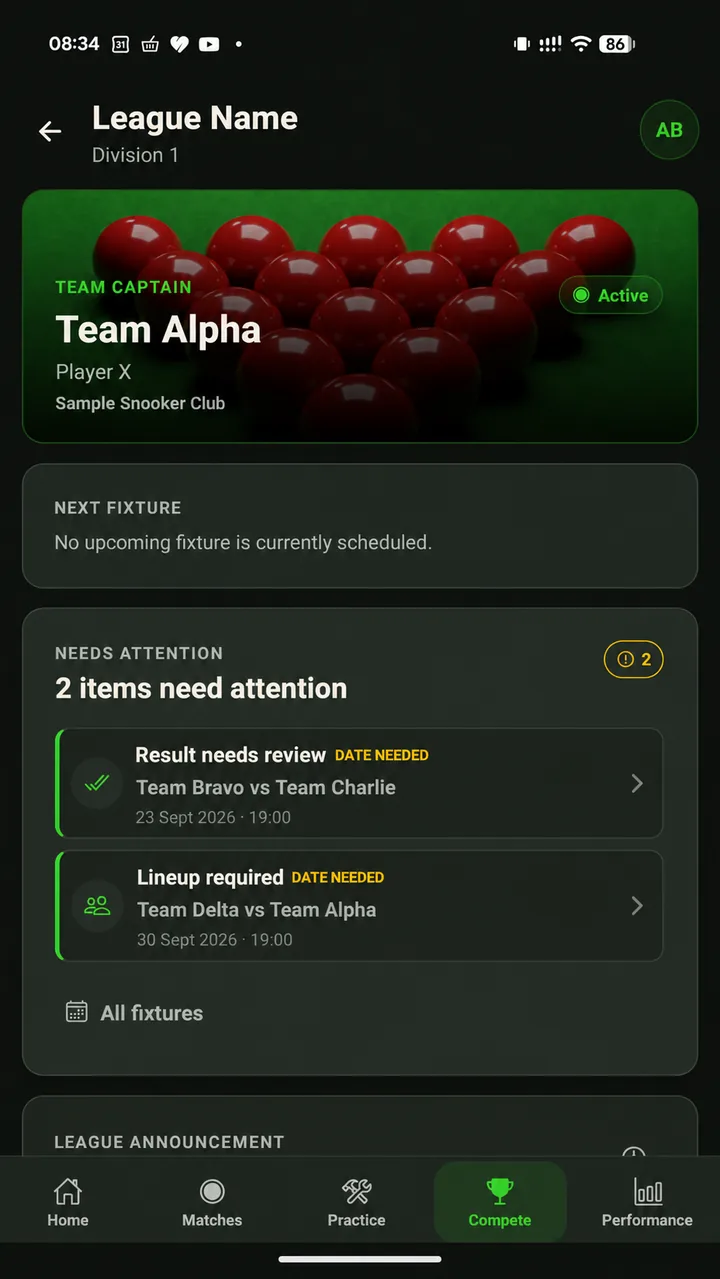
Select any screenshot in this guide to enlarge it. Screenshots illustrate example teams; follow the button names in the instructions.
Back to contents ↑02 / League guide
Choose the steps for your role
Captain
Register and manage your team during setup. Select your side’s lineup. At home, start the match and submit scores; away, review the result. Handle reschedule requests and nominate a vice captain.
Vice captain
Help with your team’s lineup and match-night duties. Your home or away role determines whether you enter scores or review them. Rescheduling and vice-captain appointments stay with the captain.
Player
Check your team, fixtures, standings and player stats. Your captain or vice captain selects the lineup and handles the result.
Following a league
A spectator follows league information without managing a team. Viewing a league does not put you on its playing roster.
If you are joining as a player
- Give your captain your registered email or exact app alias. They use it to add your account to the roster.
- If you already play as a guest, link that record first. Follow Guest players & claiming with the person who created it. Ask before creating a second roster entry.
- Open Compete and your league. Check your team in Teams & players, then open Fixtures for the schedule.
- Tell your captain if your name, team or handicap is wrong. Use Contact admin for league issues that need the organiser’s help.
A captain can also play for the team using the same account. A league admin has extra organiser controls and may also be a captain or player; the team tasks here still apply to that role.
Back to contents ↑03 / League guide
Join a league and register your team
Have your team name, division, home club and player details ready. Your league may also ask for real names and handicaps.
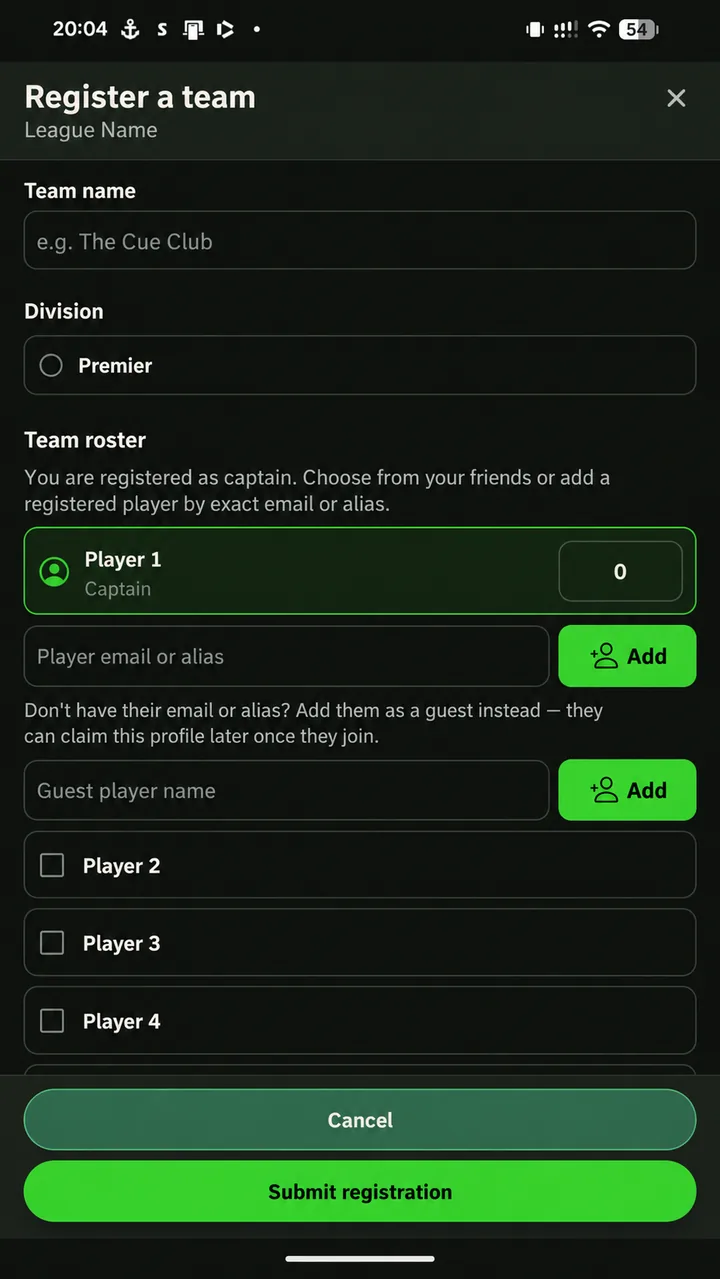
- Open the correct league. When registration is open, tapping its card opens Register a team. If registration is closed, opening it may let you follow the league instead. Contact the admin about joining a playing team.
- Enter your team name and choose a division. You are included as captain. Check the division with your organiser if you are unsure.
- Build the roster. Choose players from your friends, or enter a registered player’s exact email or alias and tap Add. For someone without an account, use Guest player name → Add.
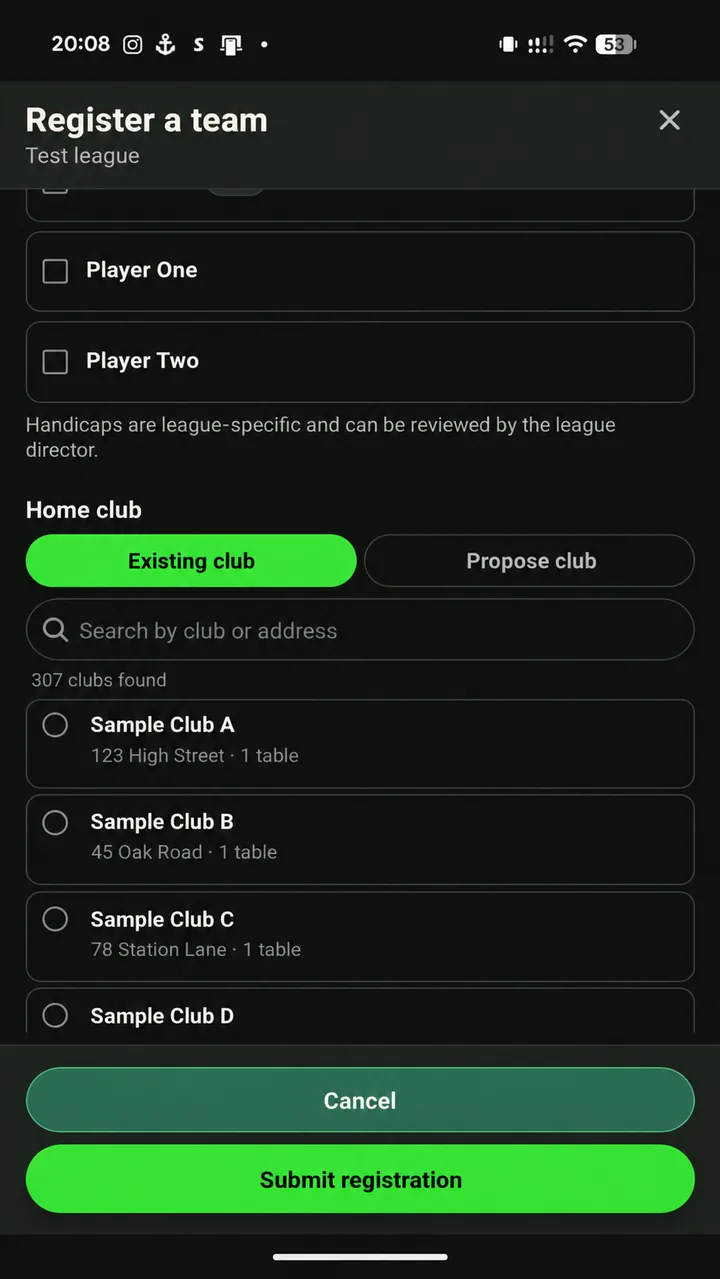
- Complete the requested player details. Check handicaps if enabled. In a real-name league, complete the required names and acknowledgement.
- Select a home club. Search the available clubs or propose a new one using the form. Check the club and venue details before submitting.
- Tap Submit registration. Wait for the success message. You are taken to the league workspace, where your team awaits the admin’s review.
What happens after you submit?
| Team status | Your next step |
|---|---|
| Awaiting approval | The admin is checking your registration. Roster editing is unavailable while the team is awaiting review. |
| Changes needed | Read the admin’s reason, make the requested changes using the available controls, and resubmit. A returned team can be allowed to make corrections after the deadline. |
| Approved | Your roster is locked for captain edits. Contact the admin for further changes and wait for the season to become Active. |
If the admin has already created your team for you, it's already approved — there's no submission step. Open it from My Leagues to check the roster and club details, and contact the admin if anything needs changing.
Back to contents ↑04 / League guide
Understand the season stages
A league is the competition; a season is one run of that competition. A division groups teams. A fixture is a scheduled meeting between two teams, made up of individual frames.
| Season stage | What it means for you |
|---|---|
| Registration Open | Captains register teams and complete rosters. Check the deadline and your team’s approval status. |
| Scheduling & Final Checks | The admin prepares fixtures and finalises the season. Wait for activation before starting match-night tasks. |
| Active | Use fixtures, lineups, scoring, result reviews, rescheduling and standings. |
| Archived | The season is available for reference. Use Compete → History to find previous seasons. |
If you cannot see an expected action, check both your role and the season stage. A player’s workspace has different controls from a captain’s, and setup screens differ from an active season.
Back to contents ↑05 / League guide
Add guests and link their accounts later
A guest is a player record for someone who does not yet have their own app account. A captain can add guests to the roster so they can take part in the league.
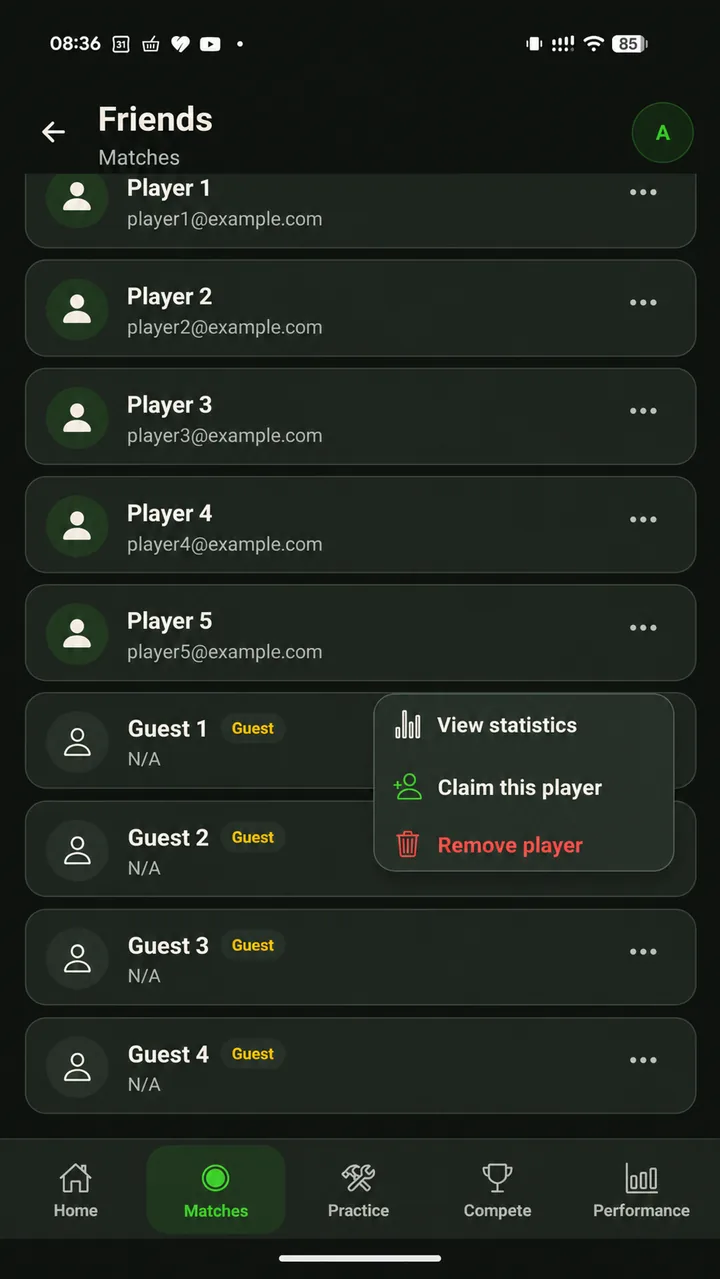
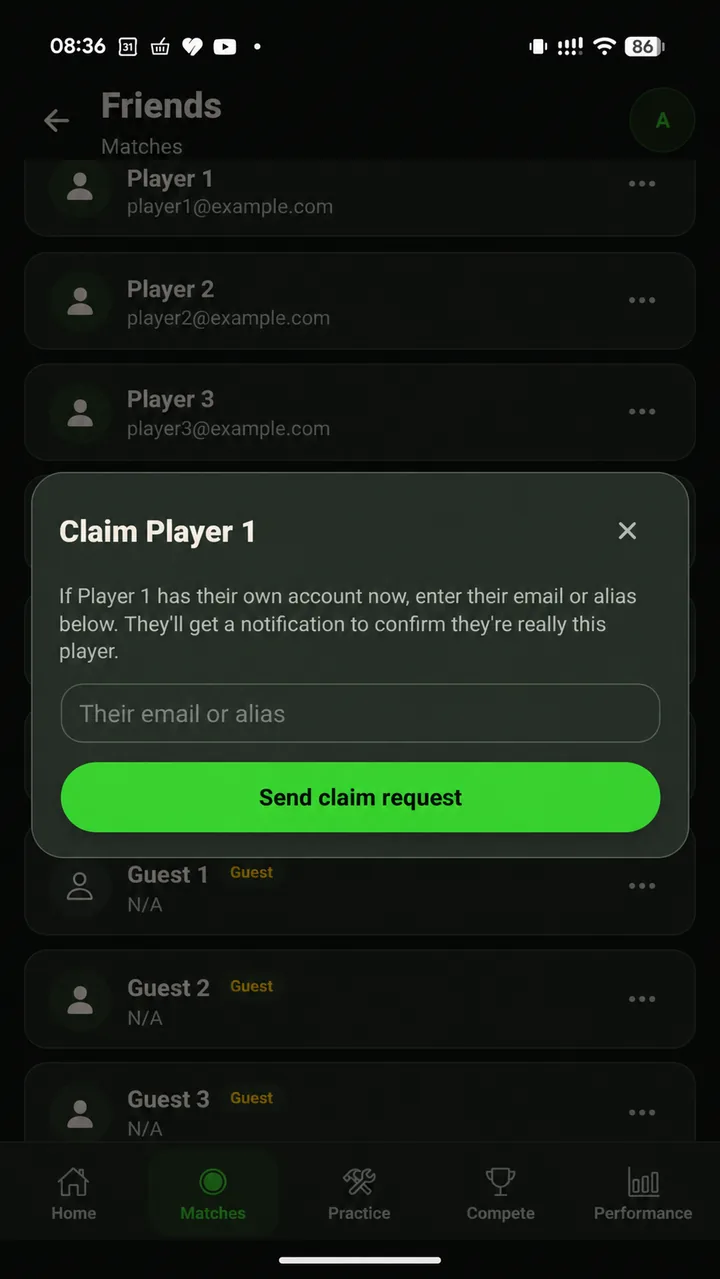
You can also create a guest in Friends. Only the person who created that guest can start the account-linking request later.
When the guest creates their own account
- Ask the player to register and share their account details. Use their exact registered email or app alias.
- Open Claim this player on the existing guest. Enter those account details and send the request. Check that you have chosen the right person.
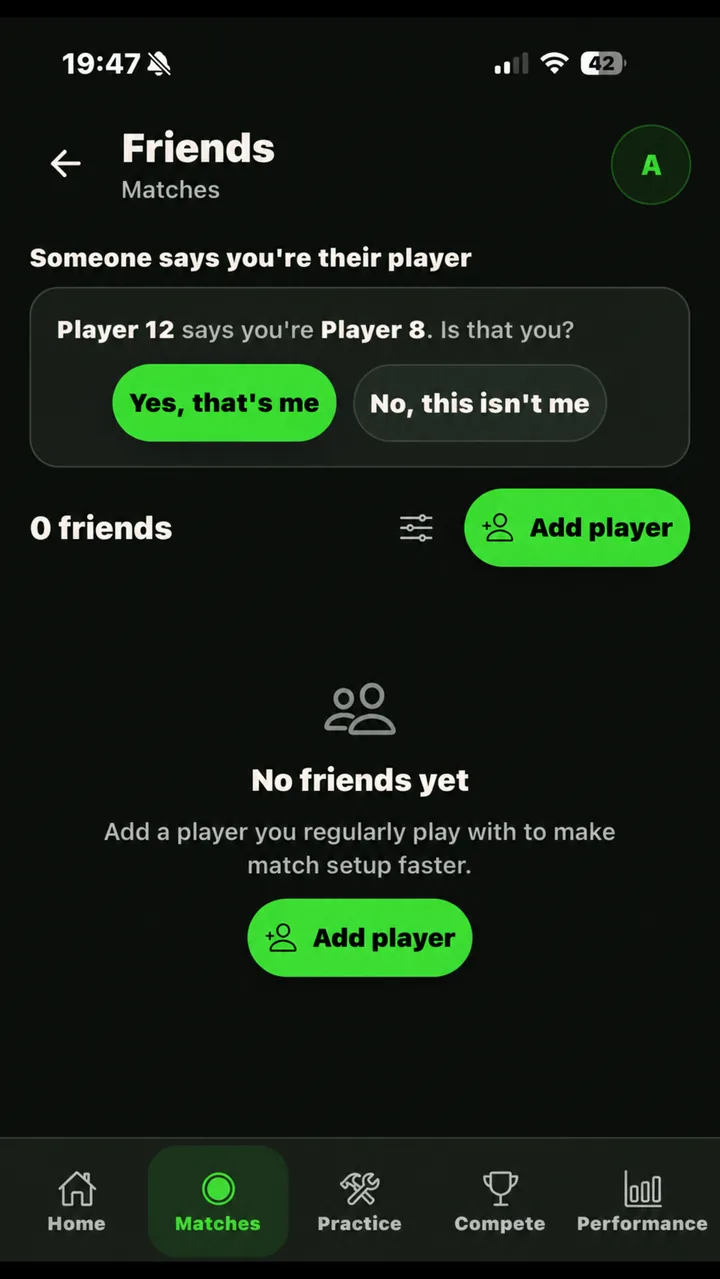
- The player opens Friends in their own account. The request appears at the top. They choose Yes, that’s me if it is their record, or No, this isn’t me if it is wrong.
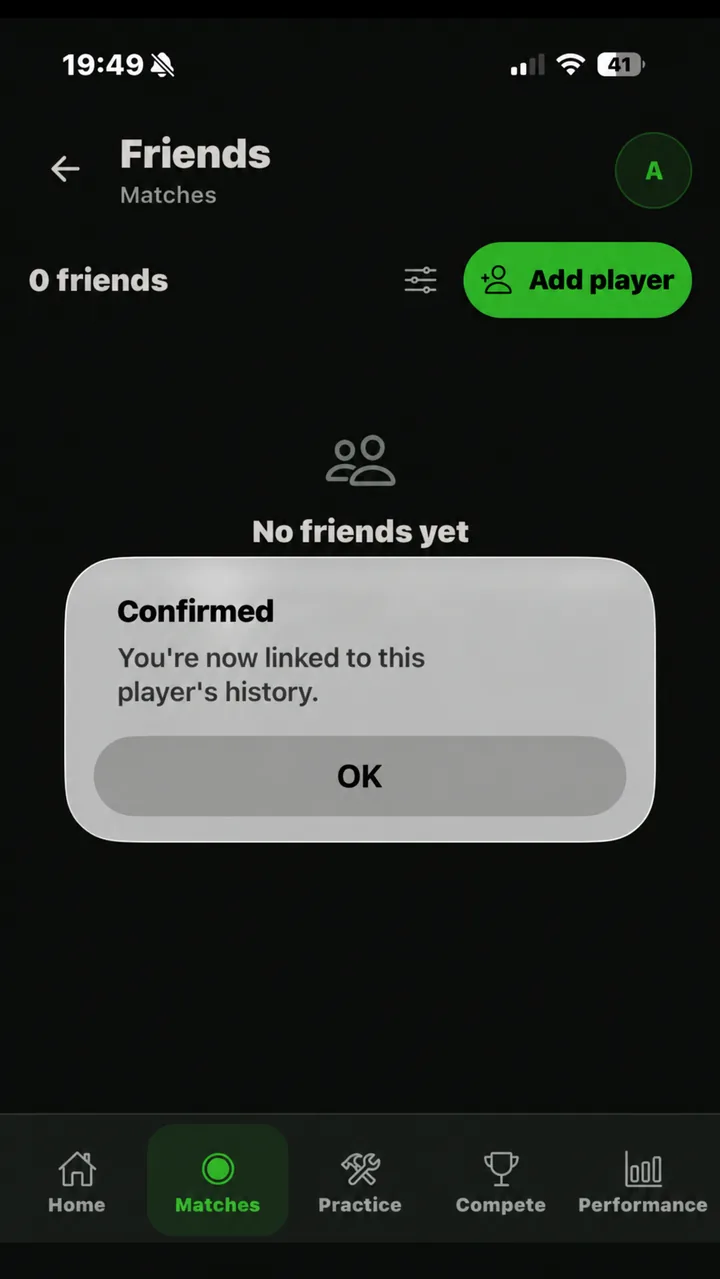
- Allow the history transfer to finish. After confirmation, their league and match history is linked to their account. Check the roster and history once processing completes.
A message you can send to your player
“Please create your SnookerSync account and send me the email or alias you registered with. I’ll send a request to link your existing player record. Then open Matches and tap Friends. Check the request at the top and choose ‘Yes, that’s me’ if the guest record is yours.”Back to contents ↑
06 / League guide
Find fixtures and request a new date
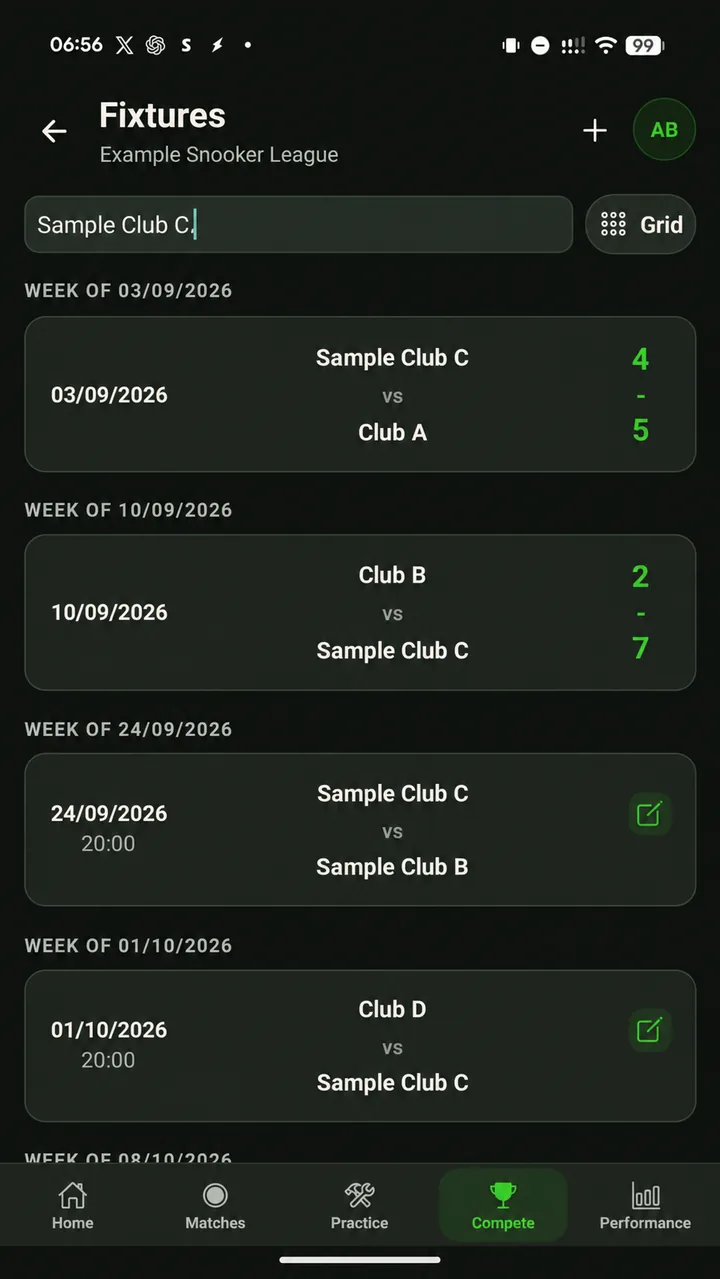
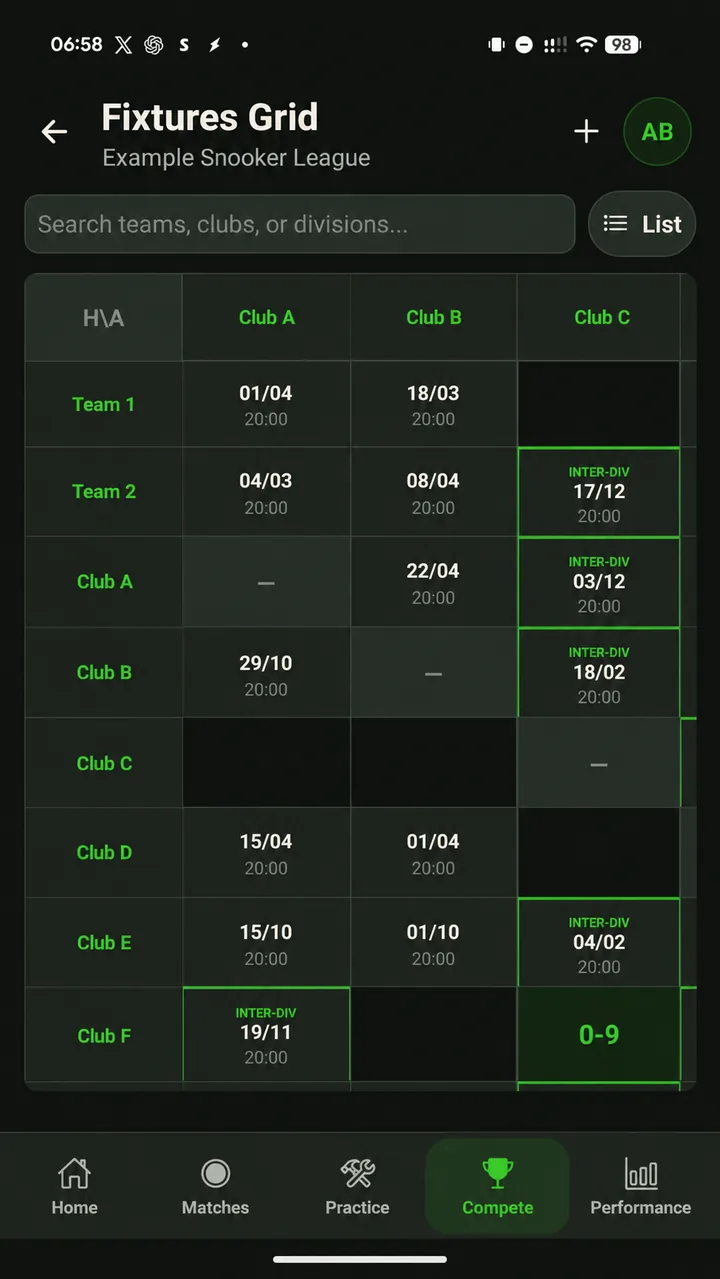
- Check the date, time and teams. The List view groups fixtures by week. Use All fixtures from the workspace as another way into this screen.
- Switch to Grid for the wider schedule. It shows team pairings across the season. Check the division and any inter-divisional fixtures when applicable.
- Open the fixture or its available action. Captains and vice captains can use their workspace’s Next fixture or Needs attention card to reach the current match task. Completed fixtures let you inspect the result.
Request a reschedule · Captain
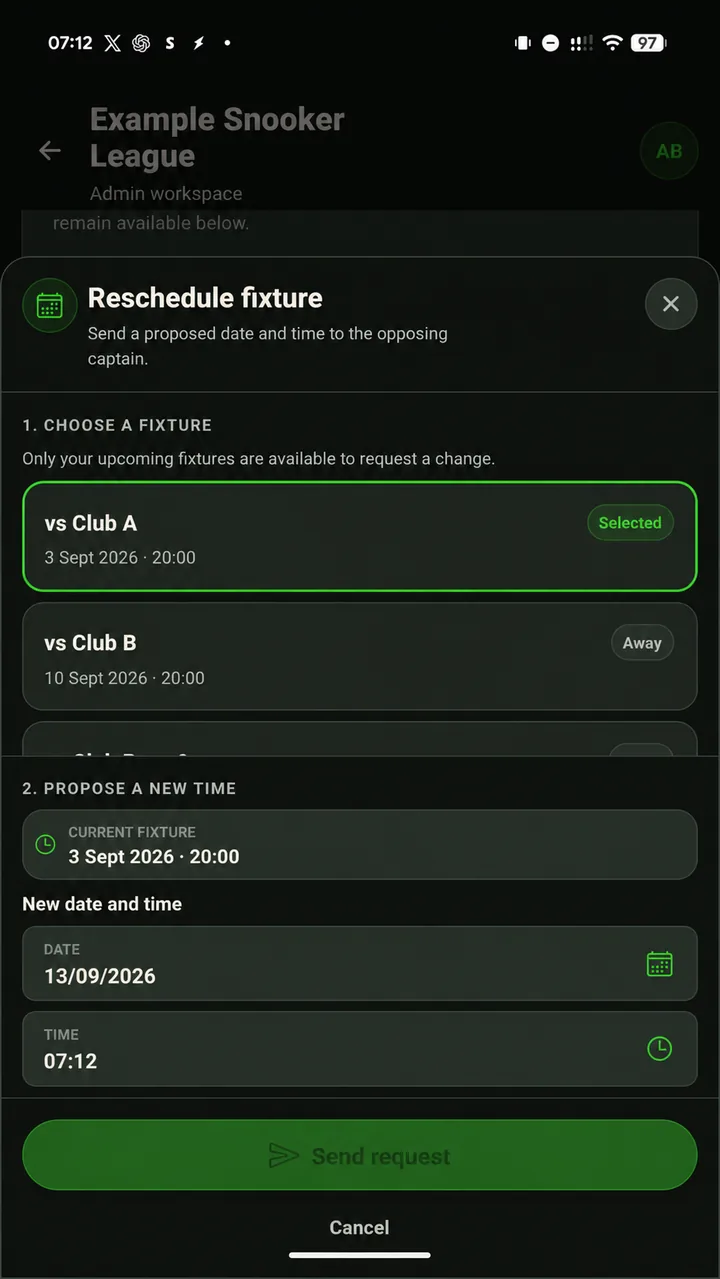
- Choose an eligible upcoming fixture. Check you have the correct opponent.
- Choose the New date and time. Check the proposed time, then tap Send request.
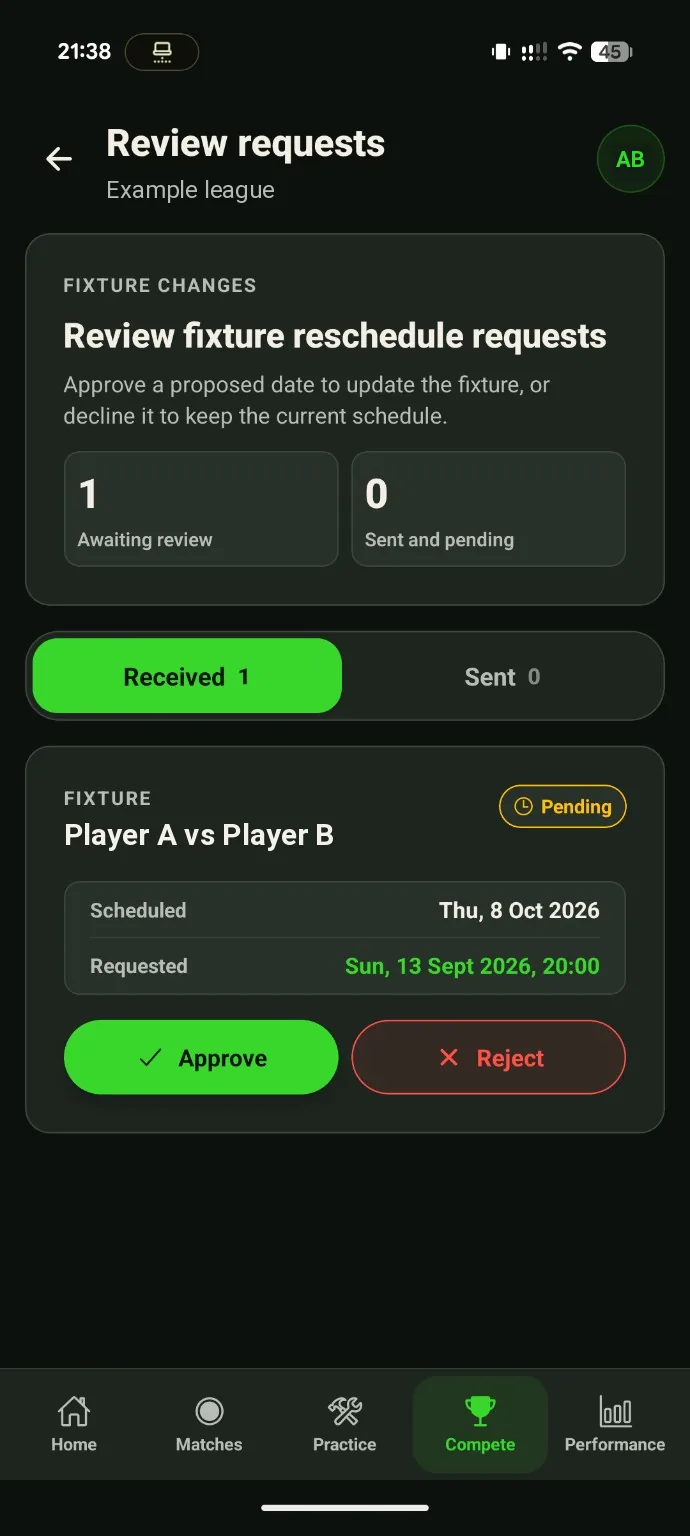
- Open Review requests → Sent. The request waits for the opposing captain. You can cancel your request while it is pending.
- The opposing captain opens Review requests → Received. They approve or reject the proposal. Once approved, check the new date and time in Fixtures.
07 / League guide
Set the lineups and start the match
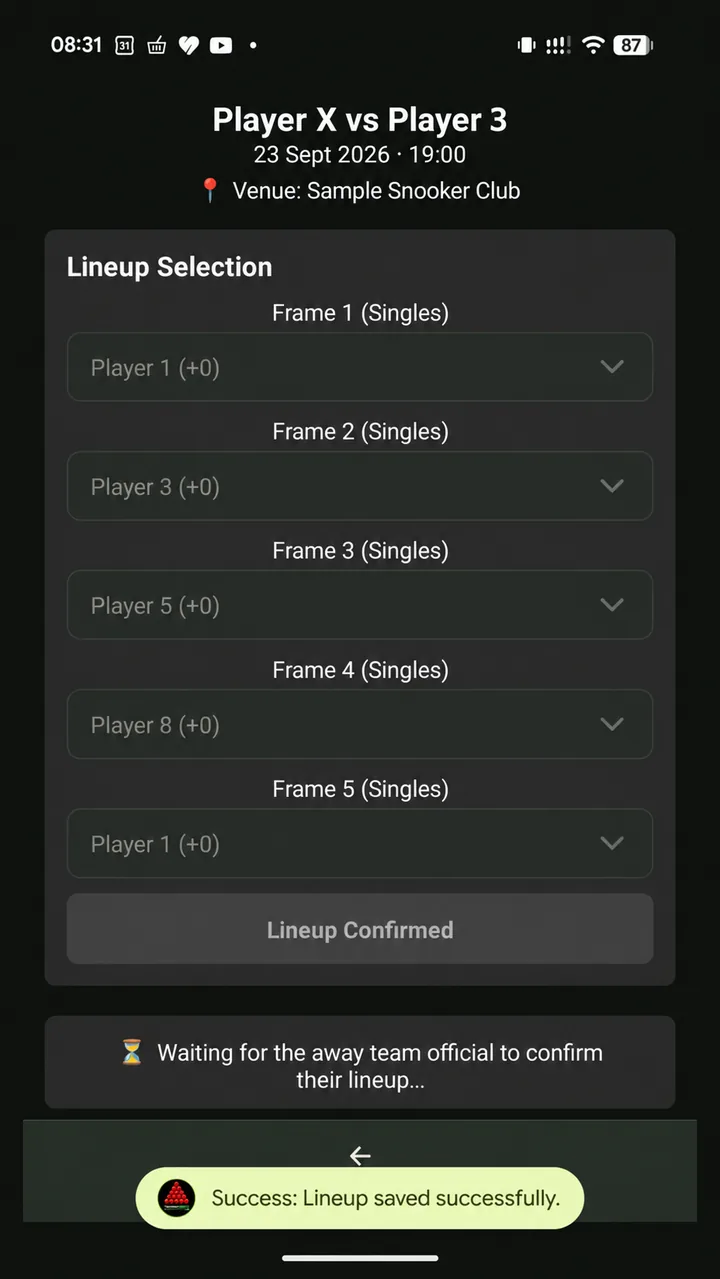
- Check the fixture and your home or away side. Each team official selects their own team’s players.
- Follow your league’s lineup order. In home-first leagues, the home team confirms first; the away team then selects its lineup. In independent-lineup leagues, either side can confirm first.
- Choose players for each frame. Fill every required slot, including both partners for doubles if your format uses them. Check the order carefully.
- Tap Confirm Lineup and confirm the prompt. Your lineup is now locked. If it is wrong, contact your league admin.
- Home team: tap Start Match once both lineups are confirmed. The away team waits for the home official to start. Follow any timing prompt shown by the app.
| You see | What happens next |
|---|---|
| Waiting for home lineup | The home team must confirm before the away team can choose its lineup. |
| Waiting for opponent lineup | Your lineup is saved. The other team needs to confirm theirs. |
| Ready to start | Both lineups are confirmed. The home official can start the match. |
| Waiting for home team | The home captain or vice captain needs to start the match. |
08 / League guide
Enter, submit and approve the result
The home captain or vice captain enters and submits the scores. The away captain or vice captain reviews them. Publishing a frame shares its score; submitting the whole result sends it for approval.
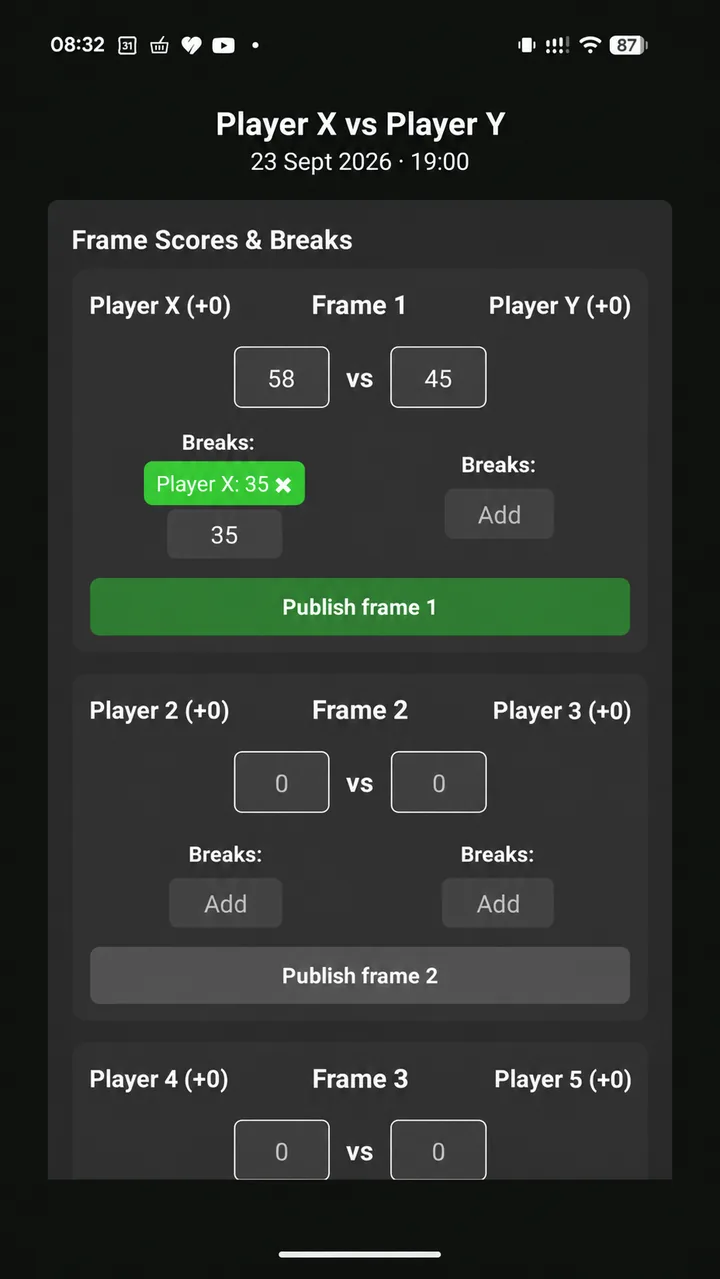
- Enter the final home and away score for each frame. Use the scoreboard totals. You do not need to record every shot.
- Add any breaks to the correct player. Check the player and break value before publishing.
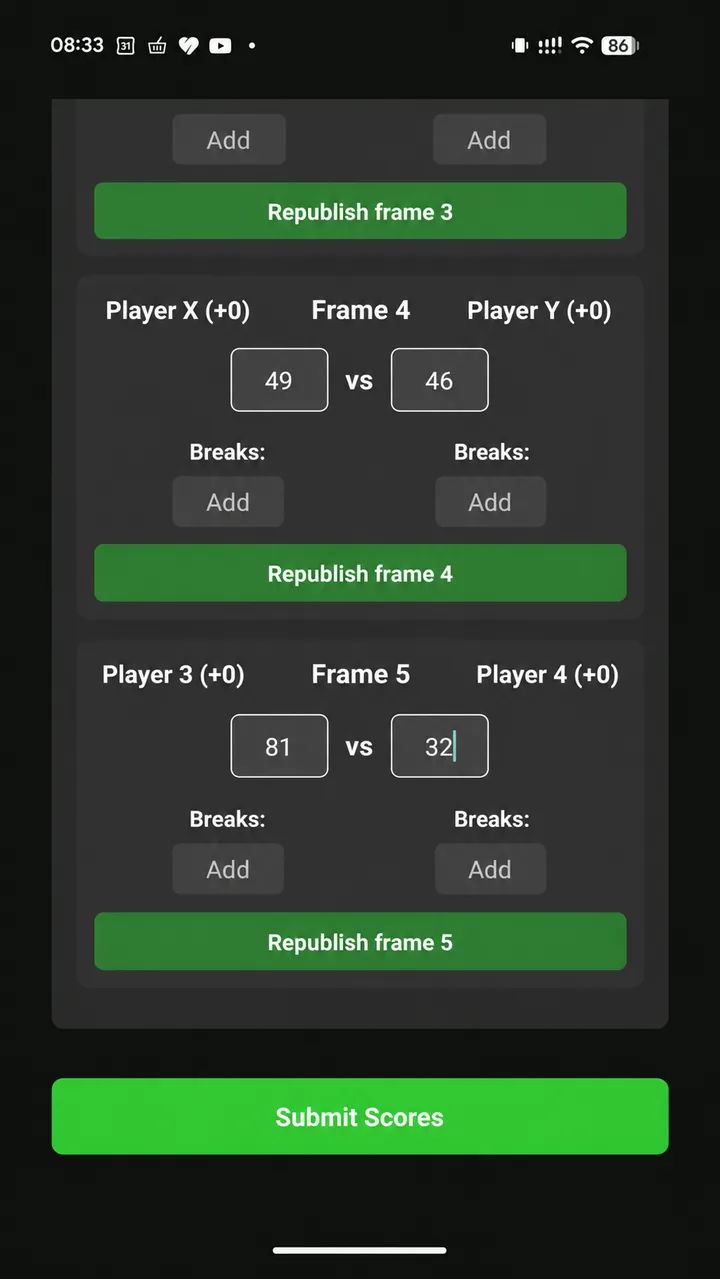
- Tap Publish frame for the completed frame. The away team can see published frames while the match continues. If you change a published score or break, republish that frame.
- Finish and check all frames, then tap Submit Scores. Wait for confirmation that scores were submitted. The result now awaits approval from the away team.
Away team: check the result
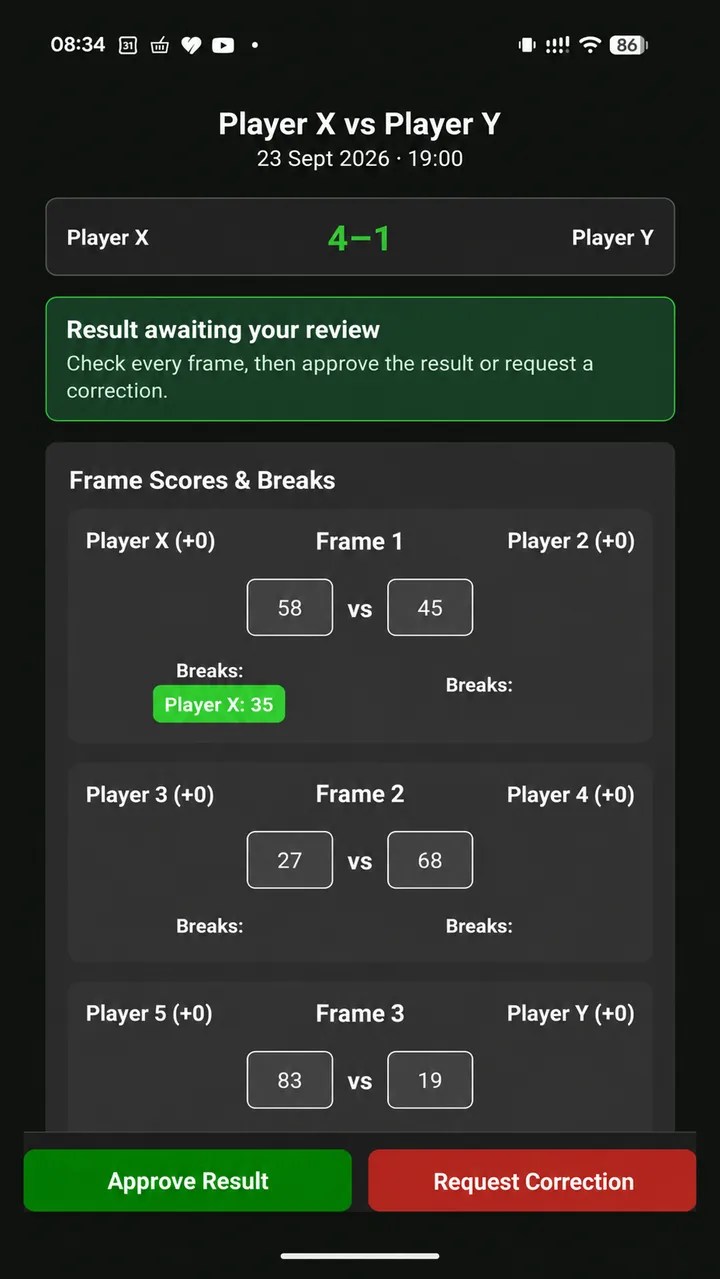
- Check every frame. Compare the players, scores and breaks with the agreed match record.
- If everything is correct, tap Approve Result. The fixture is complete once approval succeeds. Approved results feed the standings and statistics.
- If something is wrong, tap Request Correction. Select the affected frames, choose what needs checking, add a useful note if needed, and send the request.
Home team: respond to a correction
Open Scores need correction → Update scores from the workspace. Read the reason and affected frame numbers. Correct the scores or breaks, republish changed frames, then use Submit Scores again. The away team reviews the corrected result. Contact the admin if the issue needs a player or locked-lineup change you cannot make.
09 / League guide
Nominate a vice captain
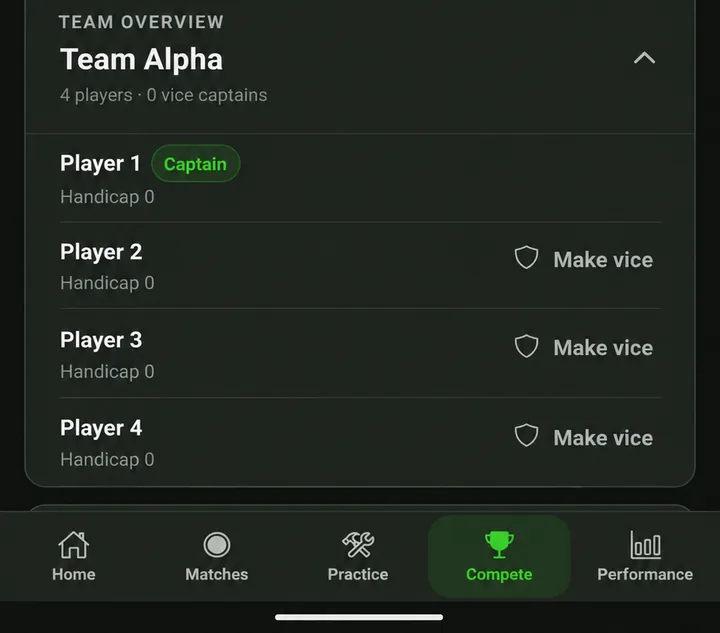
- Tap Team overview to expand the roster and find the player. They need a registered account linked to their player record. An unclaimed guest cannot be a vice captain.
- Tap Make vice beside the player. Check the role is shown on the roster after the change saves.
- Ask them to open the league in their own account. They can help select lineups, enter home scores or review away results.
- To remove the appointment, use Remove beside the vice-captain control. This removes the vice-captain role; it is separate from removing a player from the roster.
The captain continues to handle rescheduling and vice-captain appointments. Choose someone who can cover match-night duties when you are unavailable.
Back to contents ↑10 / League guide
Check standings, teams and player stats
- Choose Standings for the league table. Check the relevant division and the points and frames columns.
- Check Include pending results. Turn it off to see the table based on approved results. Turn it on to include submitted results that are still awaiting approval; those standings can change after review.
- Choose Player stats for league performance. Browse win averages, high breaks and the other available statistics views.
- Choose Teams & players to inspect rosters. Find a team or player and check their league details. Ask the admin about incorrect team assignments or handicaps.
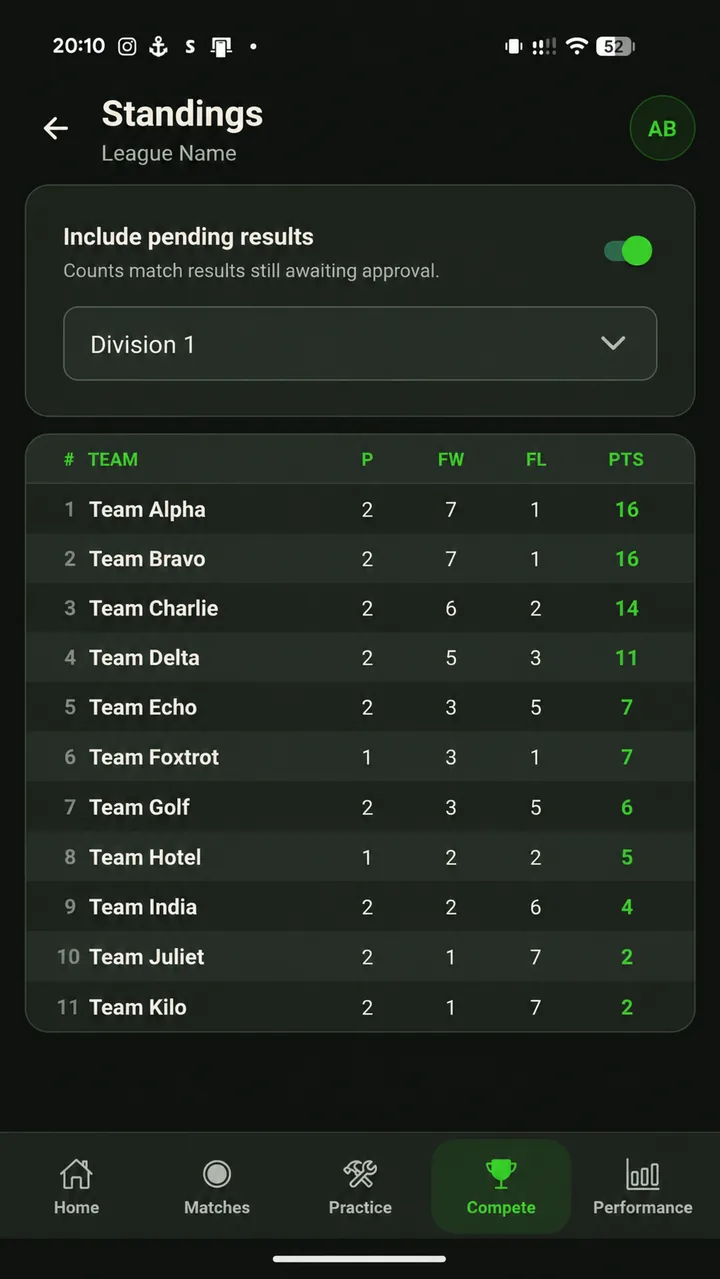
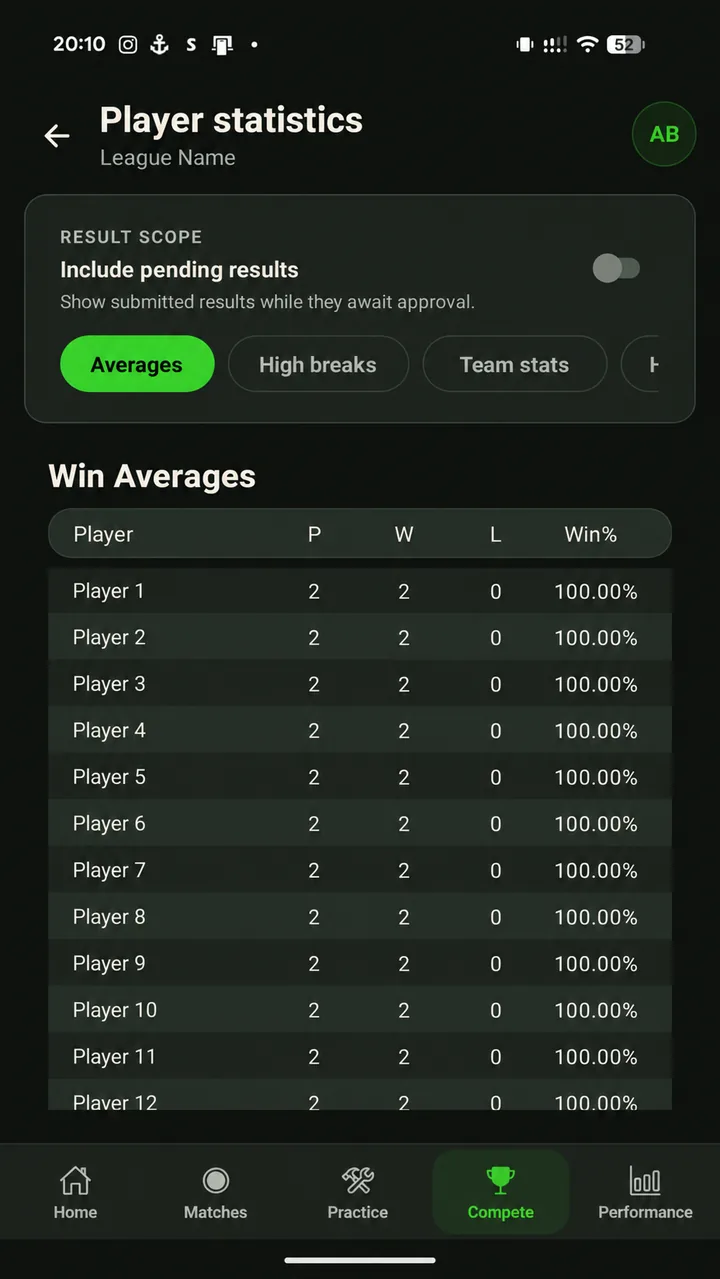
Standings and stats reflect result updates when they reach your app. If something looks missing, check that the result is approved and that you have opened the correct league, season and division.
Back to contents ↑11 / League guide
Get help and resolve common problems
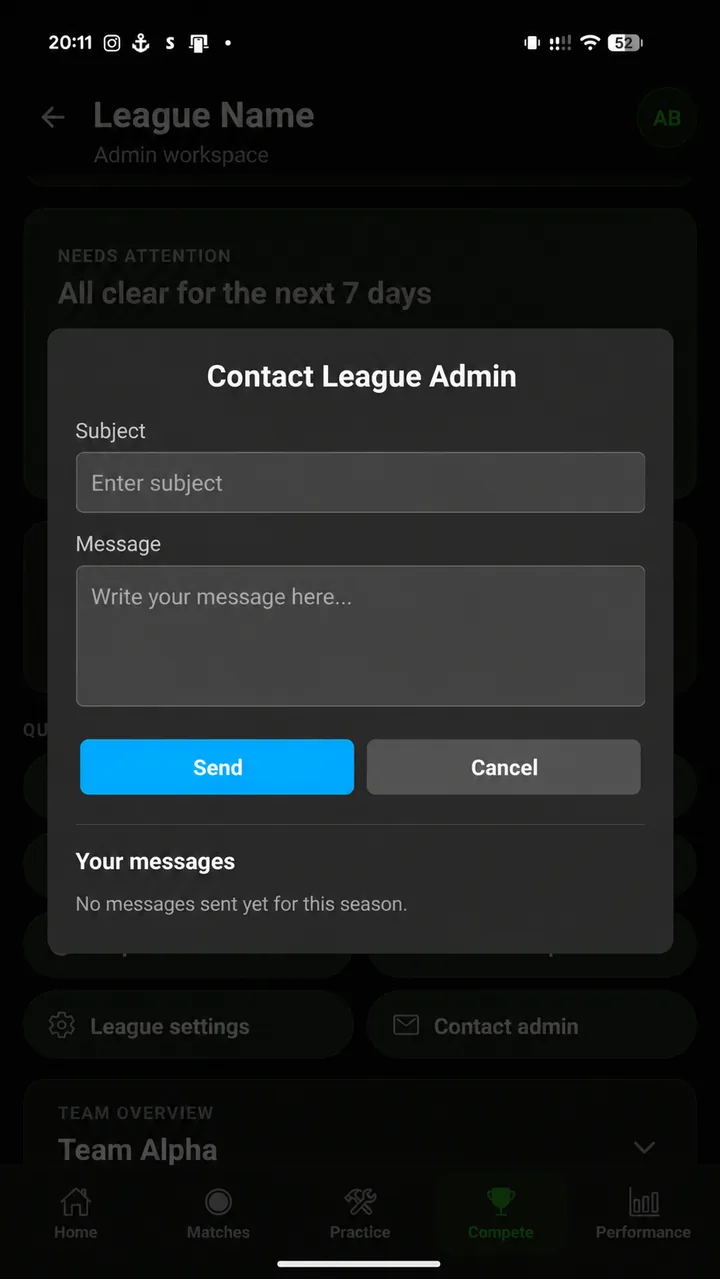
Include the league and team, fixture date and opponent, the affected frame or player, and what needs correcting. Read the League announcement on your workspace for season updates.
My league is missing
Check Compete → My Leagues and confirm you are signed in with the account your captain added. If you have only played as a guest, ask the guest’s creator to link your account. For an older season, try Compete → History.
I cannot find the league in Join
It may be private, already in My Leagues, or unavailable for registration. Check My Leagues first. Ask the admin for an invite code and confirmation that registration is open.
I cannot edit my roster
Check the team status. Awaiting approval and Approved teams are locked for captain edits. The registration deadline also restricts changes, although a returned team may be allowed to correct and resubmit. Contact the admin if the controls you need are unavailable.
I cannot enter scores or approve the result
Check your role and home/away side. Both lineups must be confirmed and the home official must start the match. Home officials enter scores; away officials review after submission. An ordinary player does not have those controls.
The score is visible but the match is unfinished
A published frame is not an approved match result. The home team still needs to submit all scores, and the away team must approve them. Check the fixture’s action or waiting label.
I cannot see Claim this player
Open the guest’s menu in Friends using the account that originally created the guest. Another captain or admin cannot start that claim on the creator’s behalf.
The email or alias cannot be found
Ask the player to check their registered email or exact app alias. They need an account before you can find or link them. If they already have a guest record, arrange the claim instead of adding them twice.
A save or submission failed
Keep a note of the scores or details and check your connection. Reopen the fixture or request to see whether the change arrived before submitting it again. If it still fails, tell the admin or support the exact message and the step you were taking.
For an app problem, email SnookerSync support. For team selection, fixtures, handicaps and league decisions, contact your league admin.
Back to contents ↑12 / League guide
Match-night quick reference
Keep this checklist open during the match, or print it for your team.
See the schedule Your league → Fixtures
Before play · Both teams
- Open the correct fixture and check the date, opponent and home/away side.
- Select players for every frame in the order required by the league.
- Check the selections, then Confirm Lineup.
- Once both lineups are confirmed, the home official selects Start Match.
During play · Home captain or vice captain
- Apply any displayed handicap start to the physical scoreboard.
- Enter each frame’s final scores, including that start, and the correct player’s breaks.
- Publish completed frames. Republish any frame you change.
After play · Home submits, away reviews
- Home: check all frames and tap Submit Scores. Wait for the confirmation.
- Away: open Review result, check every frame, then Approve Result or Request Correction.
- If returned: home corrects and resubmits; away reviews again.
- Check the fixture shows Completed after approval succeeds.
Need help? Your league → Quick access → Contact admin.
Back to contents ↑